ObjectDock "Hides" to adjacent monitor on Windows 11 multi-Monitor setup - Doesn't come back

I've only just started looking at ObjectDock, after having Fences / ObjectDesktop for a number of years.

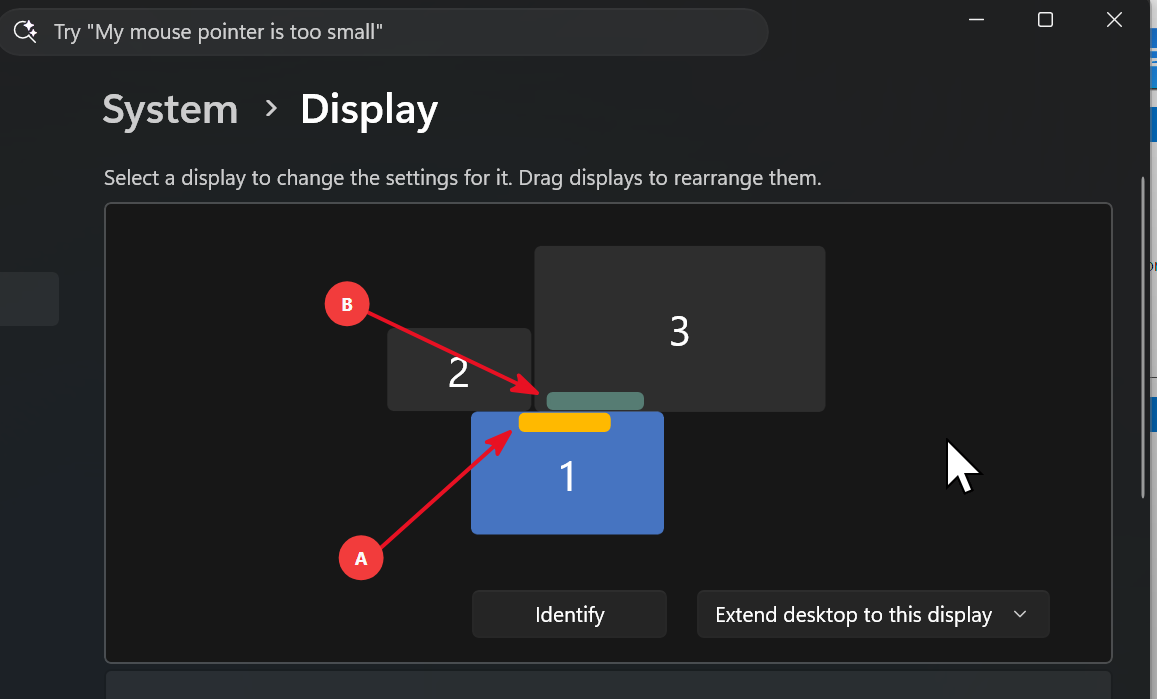
I have a 3-monitor setup with my laptop as the main display and 2 other external monitors, all configured for "extend display".

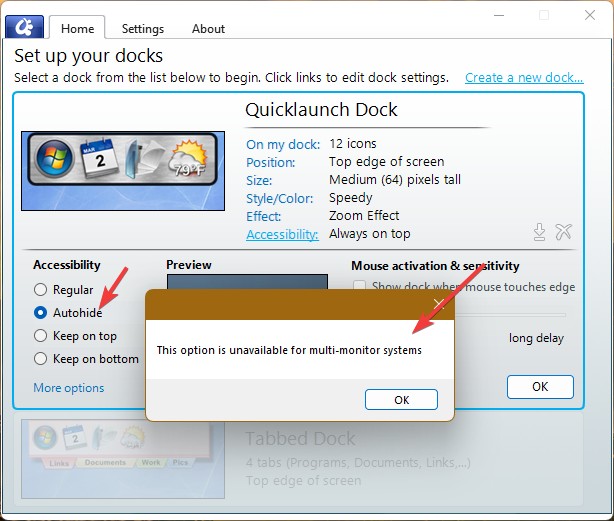
When I have ObjectDock configured for autohide and pinned to an edge of a monitor that borders another monitor ObjectDock will hide to the externa monitor and no longer be usable nor will it "unhide" on the pinned monitor.  My only option is to right click on the portion of ObjectDock on the other monitor and exit it, and then restart ObjectDock.

As an example, in the below, position A shows I have it configured to autohide and pinned to the top of Monitor 1 (Laptop).  When it autohides, it appears at position B (on monitor 3).  I can right click on it at position B, but the dock won't move back to Position A nor is it active.  If I click "Settings" the settings dialog opens on Monitor 1 and the dock appears on monitor 1, but after closing settings, it moves back to Position B, and is not usable.

Haven't seen anything about issues with multi-monitor setups, but might have missed it.
 

1,129 views 7 replies
Reply #1 Top

Hello,

Sorry to hear you are having issues. Need to know few more details.

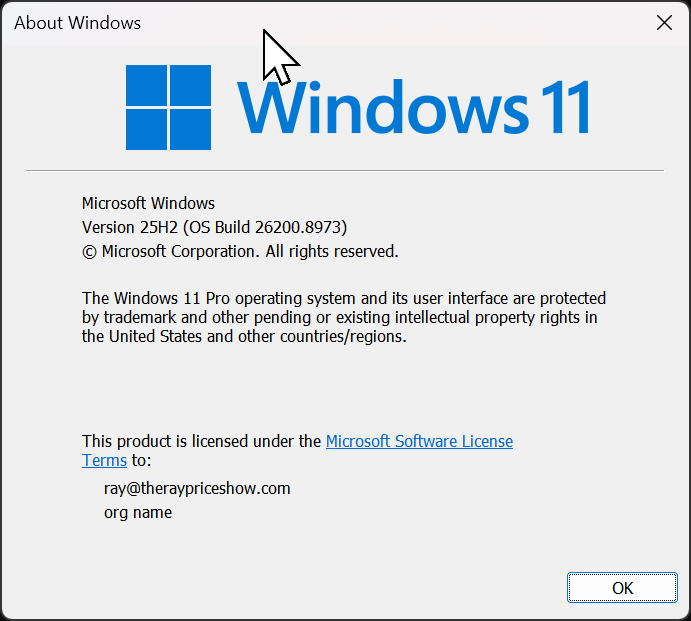
  1. Windows full version and OS Build number. Please use Winver.exe.
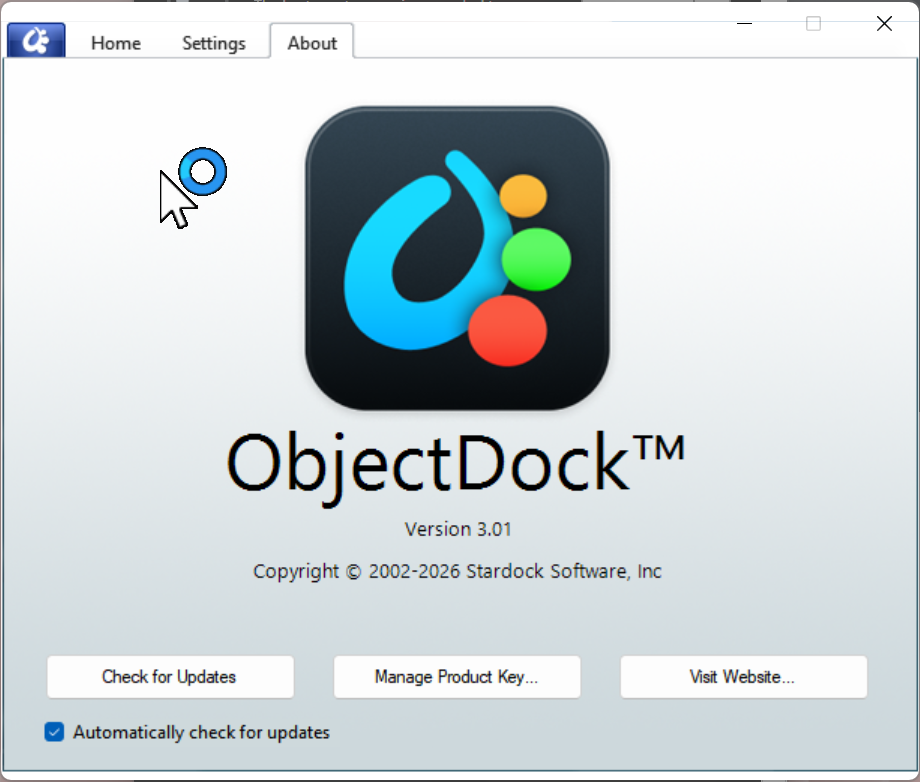
  2. Object Dock full version number installed.

Thank you,

Basj,

Stardock Community  Assistant.

Reply #3 Top

I assume you've set the dock to autohide while you only have one monitor on. If you set it while you have multiple monitor on you should have seen this.

Thank you,

Basj,

Stardock Community  Assistant

Reply #4 Top

Ahh, yes, I had originally set it up with just my laptop (quite a whle ago) and then hooked up the two external monitors recently.

That explains it.

Thanks for the info.

Ray

Reply #5 Top

Great, glad to help to clear that one up.

Thank you,

Basj,

Stardock Community  Assistant

Reply #6 Top

couple follow-up questions:

1. Can I use autohide on my laptop monitor as long as I don't have it pinned to a side that borders an external monitor?

2. Can I create additional docks tied to the external monitors, and have them stick to those monitors through disconnects / connects?  Being a laptop, I'll periodically go remote with just the laptop or even go to another location that has only a single external monitor.

Reply #7 Top
Quoting ray121, reply 3996813

1. Can I use autohide on my laptop monitor as long as I don't have it pinned to a side that borders an external monitor?

End of ray121's quote

I believe this should not be an issue.

Quoting ray121, reply 3996813

2. Can I create additional docks tied to the external monitors, and have them stick to those monitors through disconnects / connects?  Being a laptop, I'll periodically go remote with just the laptop or even go to another location that has only a single external monitor.

End of ray121's quote

I can’t personally confirm this since I don’t currently have a multi‑monitor setup that can be easily plugged and unplugged for testing. You might try creating an empty dock, placing it on your external monitor, then rebooting to see if it stays assigned when monitors are connected or disconnected.

As an alternative, you may want to look into Stardock Fences, which offers similar functionality with a more advanced layout management system. Fences works well with multi‑monitor setups, automatically restoring your layouts to the correct positions when displays are disconnected and reconnected.

Thank you,

Basj,

Stardock Community  Assistant