
Start 11 fails at showing taskbar correctly when dsiplay in changed in portrait mode

Display portraitDisplay landscapeStart 11 fails at showing taskbar correctly when display in changed in portrait mode. I have a Microsoft Surface tablet/laptop that I use for display of printed music on stage. When I turn the device 90 degrees to be in portrait mode, the display becomes all wrong, and all functionality is gone.

The behaviour is not always the same, but occurs somewhat differently each time. It appears to have been introduced in one of the latest updates/upgrades, since a few months ago there was no problem with it at all.

See attached screen images, on top the wrong display in portrait mode, below that the normal landscape mode.
1,305 views 15 replies
Reply #1 Top

Hello,

Sorry to hear you are having issues. Please try, uninstall Start11, reboot immediately (important), download latest version available in your account product download page: https://store.stardock.com/myaccount/products. Install it, reboot immediately again. Retest it and report back.

If the issue still appear, we need to know more information.

  1. Windows full version and OS Build number. Use Winver.exe to get these numbers.
  2. Start11 full version number installed.
  3. If you do restart "explorer.exe" after the orientation change, does the issue resolve. For reference: https://www.howtogeek.com/198815/use-this-secret-trick-to-close-and-restart-explorerexe-in-windows/

Thank you,

Basj,

Stardock Community  Assistant

Reply #2 Top

Hi,

After uninstalling Start11, restart of pc, and reinstalling the issue seems to have disappeared. Thanks you very much for the assistance!

Reply #3 Top

Great, glad to hear that.

Thank you,

Basj,

Stardock Community  Assistant

Reply #4 Top

Hi,

The issue described above has returned several times. I have found that the issue is not triggered so much by turning the device 90 degrees, but the fact that keyboard is detached from the device. The MS Surface device is then tranformed to a genuine tablet. That makes Start 11 to behave in strange ways.

Reinstalling Start 11 does not change that.

Thanks,

Douwe

Reply #5 Top

When the issue appear, if you do "Explorer.exe" restart. Does the issue still there, after the explorer restarted?

You can do Explorer restart by using a simple batch file using this commands.

taskkill /f /im explorer.exe

start explorer.exe

exit

Or, You can also try the method mentioned in this video.

Try it and report back.

Thank you,

Basj,

Stardock Community  Assistant

Reply #6 Top

Hi again,

I found there is a new version of Start 11, I upgraded. It is now version 2.73. This version still is no solution for the issue I have. Also, I found that merely detaching the keyboard is not what causes the problem right away. When the screensaver activates and I have to log in again, then the problem occurs. The buttons on the Start 11 taskbar have vanished. If I then attach the keyboard again, the problem disappears right away.

Reply #7 Top

Have you tried the Restart explorer steps I mentioned above?

Thank you,

Basj,

Stardock Community  Assistant

Reply #8 Top

Yes, the pc had to restart after the upgrade to version 2.73. Immediately after the restart I tested and the issue was still there.

Reply #9 Top

I mean restart Explorer.exe not restart the system. When the issue appear, just restart explorer.exe and see if the taskbar issue reset back properly. 

Thank you,

Basj,

Stardock Community  Assistant

Reply #10 Top

Hi,

I ran the batch file you specified, from a point where the issue has arisen (device in tablet mode, without the keyboard). For a moment the buttons reappeared, but with one turn 90 degrees the problem is the again. There is one way the fix the issue: attach the keyboard. But then is it not a tablet anymore.

Reply #11 Top

Thanks for that, I have forwarded your problem/question to Stardock Support Team for their assistance. Please keep an eye on this thread for any updates. We appreciate your feedback and patience. Thank you.

Basj,

Stardock Community  Assistant

Reply #13 Top

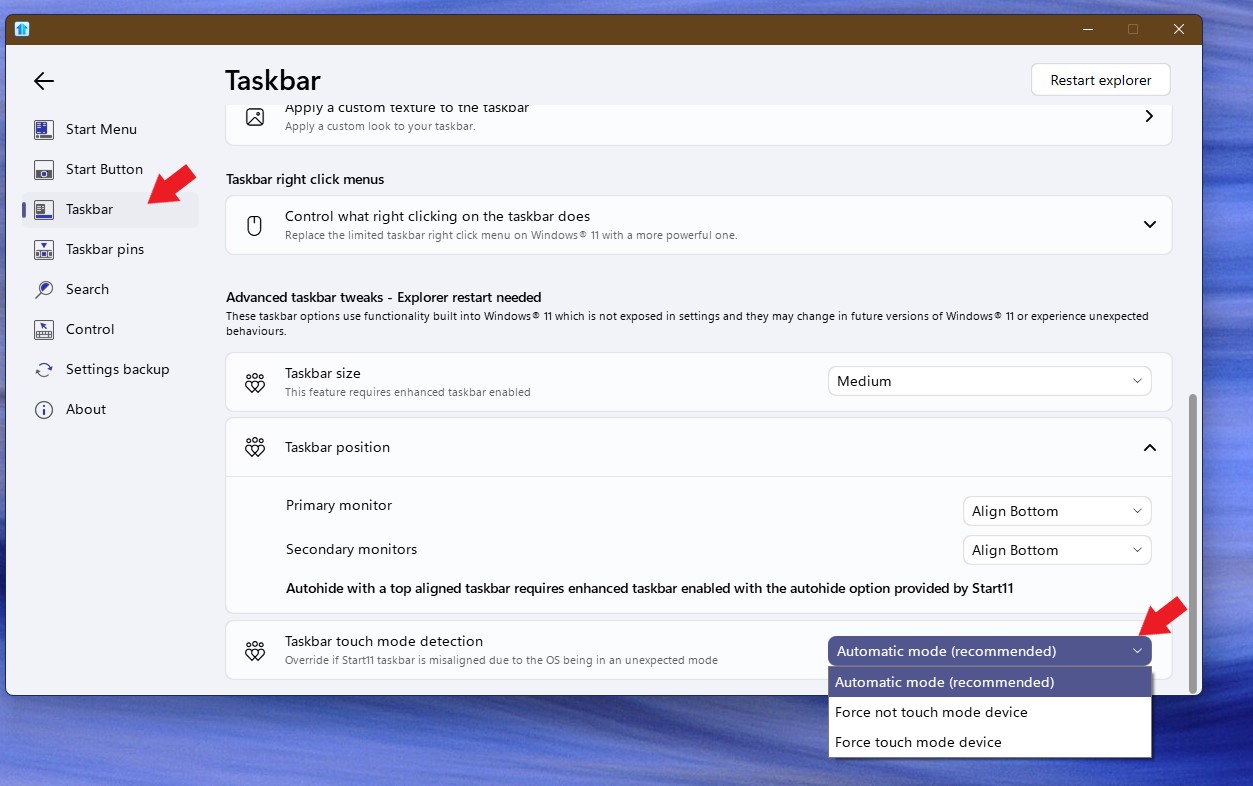
While waiting, not sure if this has been tried before. Change the taskbar touch mode detection from "Auto" to Not or Force and see if any of it help.

Thank you,

Basj,

Stardock Community  Assistant

Reply #15 Top

Thanks, please wait for Support to reply.

Thank you,

Basj,

Stardock Community  Assistant

